



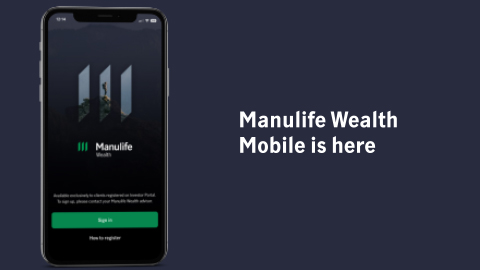
Feel confident about your wealth—now on iPhone
Securely access your Manulife Wealth accounts, performance, and documents—wherever you are.
Download the app
Designed for you
One consolidated view.
See all your Manulife Wealth accounts in one place.
Clarity, faster.
Check balances and performance quickly, with access to the details when you want them.
Confidence in the numbers.
Your mobile view is designed to align with what you see in Investor Portal and with your advisor.
 1:14
1:14

Designed to deliver
Complete portfolio view:
View your investments and performance details (book value, market price, market value, holdings), review transaction history, and track performance over time with clear, interactive charts.
Documents on demand:
Statements, tax documents, and trade confirmations with search and filter capabilities.
Sign-in protection:
Biometric and identity safeguards support secure access.
Getting started
1. Download
the Manulife Wealth Mobile App on your iPhone

**Android app will follow shortly
2. Sign in
using your Manulife Wealth Investor Portal credentials (Manulife ID)
3. Explore
your portfolio, holdings, activity, and documents
Want to know more?
Have a look at some of the frequently asked questions below, or get in touch and contact us.

Can I see all my Manulife Wealth accounts in the app?
Can I see all my Manulife Wealth accounts in the app?
Yes. Accounts linked to your Manulife Wealth Investor Portal profile appear automatically after you sign in.
How do I sign in?
How do I sign in?
Use the same Manulife ID you use for Investor Portal.
My sign in isn’t working. What should I do?
My sign in isn’t working. What should I do?
Contact your advisor or Manulife Wealth support at 1-800-361-3119.
Find answers below or contact us for more support.
Getting started
Getting started
Do I need Investor Portal access?
Yes. Investor Portal registration is required to use the mobile app. Contact your advisor or manulifewealthsupport@manulife.ca to request an invitation.
Is the app available on Android?
An Android version is planned for a future release.
Access and profile issues
Access and profile issues
I forgot my password/I’m locked out—what do I do?
Use the password reset option on the login screen or through Investor Portal. If access issues continue, contact manulifewealthsupport@manulife.ca.
How do I change my profile information?
You can update your profile name and mobile telephone number in Investor Portal on a desktop device. For other changes, contact your advisor or Manulife Wealth support at 1-800-361-3119.
Security and privacy
Security and privacy
How is my information protected?
The app uses the same security standards as Investor Portal, including advanced encryption and industry-leading security measures. Details are available in the Online Privacy Policy.
How do I enable or disable Face ID on an iPhone?
To enable Face ID:
1. Register Face ID on your phone:
Home screen > Settings > Face ID & Passcode. Follow the prompts.
2. Turn on Face ID in the Manulife Wealth app:
- Sign in to Manulife Wealth Mobile
- Open the More menu
- Select Face ID
- Toggle Enable Face ID to Yes
3. Accept the terms and conditions.
If prompted, choose OK to save your Manulife ID.
To disable Face ID:
- Open the More menu
- Toggle Enable Face ID to No
- Tap I agree
Next time you sign in, you’ll be prompted to enter your password.
Homepage and portfolio view
Homepage and portfolio view
What appears at the top of the homepage?
A timeframe selector, followed by total portfolio value in CAD, and the change in value for the selected period. Foreign exchange rates appear when applicable based on your holdings and accounts.
What does the performance chart show?
A line chart showing portfolio performance over time. Changing the timeframe updates the chart.
What information appears in Portfolio Summary?
Portfolio Summary shows:
- Starting market value for the selected period
- Ending market value
- Net invested capital
These values update when you change the timeframe.
Do account values change when I select a new timeframe?
No. Timeframe selections apply only at the portfolio level. Account values are always shown since inception.
How do I view account details?
Tap any account listed on the homepage to see holdings, performance history, and recent activity.
Where are the saved filters from Investor Portal?
Saved filters aren't currently available in the app. They’ll be added in a future release.
Holdings
Holdings
What appears on the Holdings tab?
A list of holdings for your full portfolio or selected account. Each holding shows:
- Code and name
- Short description
- Market value in CAD
- Units held
- Price per unit
Tap a holding to view more details.
How do filter and search work on Holdings?
Filter narrows results using available criteria such as account or asset class. Search looks for holdings by name or code. Search applies only to holdings currently visible on screen.
Activity
Activity
What does the Activity tab show?
A list of transactions for your portfolio or selected account, ordered with most recent first. Examples include dividends, reinvested distributions, interest, and other activity.
What details are shown for each transaction?
Selecting an activity shows:
- Transaction type
- Related holding
- Transaction amount in CAD
- Processing and settlement dates
What sort, filter, and search options are available?
You can sort by date or total value. Filters include account, activity type, and date. Search returns activity currently visible on screen.
Documents and statements
Documents and statements
Where can I find account statements and tax documents?
All available statements, trade confirmations, and tax slips appear in the Documents tab.
What does the Documents tab show?
A list of documents for your portfolio or selected account. Each document appears as a card showing the document type, title, and date.
Can I view and download documents in the app?
Yes. Selecting a document opens a preview. From there, you can download, share, or save the file using your device options.
Filtering and search
Filtering and search
How can I narrow my documents list?
You can filter by account, document type, tax form, tax year and date.
What is the default document view?
The Documents tab opens to documents from the past 30 days.
How does document search work?
Search returns results only from documents currently shown in the list. Documents filtered out of view will not appear in search results.
App compatibility and settings
App compatibility and settings
Which devices and operating systems are supported?
The app supports iPhone and iPad running iOS 12 or later. On iPad, screens display in iPhone ratios.
How do I check my device operating system version?
On the device, go to Settings > General > About.
How do I see which app version I’m using?
The app version is listed under the Settings tab.
Accessibility and support
Accessibility and support
I’m visually impaired – can I use the app?
Yes. The app meets the same accessibility standards as the Manulife website. More information is available at https://www.manulife.ca/about-us/accessibility.html.
Who can I contact for help?
Contact your advisor or Manulife Wealth support for assistance.

Investor Portal access required
You must be registered for Investor Portal to use the app. Not registered? Contact your advisor or Manulife Wealth support for your invitation.
Investor Portal sign up guideNeed help?
Telephone: 1-800-361-3119; Monday to Friday 8 a.m. to 6 p.m. ET
By email: manulifewealthsupport@manulife.ca